
User guide
Guide
Everything the OCU-1 does, in the order you will meet it: first power-on, Wi-Fi, the server and its protocol, the throttle screen, the menus, the setup page, and what to do when something is off.
Before you start
You need three things: a DCC command station, something on your network that speaks one of the three protocols the OCU-1 understands, and a Wi-Fi network the OCU-1 can join. The OCU-1 does not need the internet at any point.
- WiThrottle — JMRI provides a WiThrottle server for almost any command station; DCC-EX EX-CommandStation has one built in and can even be its own Wi-Fi network. WifiTrax, the Digitrax LNWI, MRC and a good many ESP32 projects speak it too.
- Z21 — the Roco / Fleischmann Z21 and z21 (including z21 start and Z21 XL), the Digikeijs DR5000, YaMoRC and DCC-EX in Z21 mode all speak the Z21 LAN protocol. The OCU-1 talks to them directly; no computer in between.
- LCC — an LCC / OpenLCB layout with a hub on the network: a TCS CS-105 command station, JMRI's OpenLCB hub, or an OpenMRN hub. The OCU-1 is a proper LCC node and drives trains with the Train Control protocol.
You can save servers of all three kinds and switch between them; the handset speaks whichever protocol the server you pick uses. What each protocol gives you is a little different, and the guide says so where it matters.
Charge it first. Plug the USB-C cable into any 5 V USB supply; the handset runs while it charges. The battery icon at the top right of the throttle screen shows the level, and the setup page can show a percentage beside it.
Two ways to change any setting. Most things can be done on the handset with the keys or the knob, and everything can be done on the setup web page the handset serves over Wi-Fi. When the guide says “on the setup page”, that is the page described below.
First power-on and Wi-Fi
Hold any key to wake the handset. It shows the Traction wordmark with the model, firmware version and MAC address, then starts looking for a network.
On a brand-new handset there are no saved networks, so it does the sensible thing: it makes a setup hotspot called Traction-OCU-xxxx (the last four digits of its MAC address) and tells you so on the screen.
- On your phone or laptop, join the Wi-Fi network
Traction-OCU-xxxx. It has no password. - Open
http://192.168.4.1in a browser. Enter the PIN (factory1234). - On the Network tab, tap Scan for networks nearby, pick your layout's network and type its password. You can save several; the handset tries them in order and moves the one it last used to the top.
- Tap Save & restart.
The handset restarts, joins your network and goes on to look for a server. From then on it connects by itself at power-on.
You can also join a network from the handset alone: Setup → 2: WiFi Setup → 2: Scan & Join lists the networks it can see with their signal strength. Pick one, and type the password on the keypad. The same menu opens the setup hotspot on demand (1: Setup Page) and forgets a saved network (3: Forget Network).
Dual band. The OCU-1 has 2.4 GHz and 5 GHz radios. On a network that has both, it prefers 2.4 GHz because it reaches further; if you would rather it used 5 GHz, or only one band, set that under Network → Radio on the setup page.
Finding the server
Once on Wi-Fi the handset looks for a server in this order: any servers you have saved on the setup page or the handset, then a network search, then a couple of educated guesses. The search finds WiThrottle servers and LCC hubs by mDNS (the way phone apps find JMRI) and asks the whole subnet for Z21 stations, which do not announce themselves. On a DCC-EX command station's own access point it tries 192.168.4.1; on a Z21_xxxx hotspot it tries the Z21's factory address 192.168.0.111.
If more than one is found you get a list; press its number or turn the knob to it. A server that is not WiThrottle carries a Z21 or LCC tag after its address so you can tell them apart. If nothing is found after three rounds you get the manual entry screen: type the address on the keypad (* is backspace; on an empty field it starts a fresh scan) and press # to connect — port 21105 is taken as a Z21, 12021 as an LCC hub, anything else as WiThrottle. The screen also shows the address of the setup page, because typing an IP address is easier on a phone: add the server under Network → Throttle servers, with a name and its protocol, and it will be tried first next time.
You can also save a server on the handset: Setup → 3: Srv Setup → 1: Add asks which protocol it speaks, then its address. Type just the IP and press # to use that protocol's usual port, or the full address and port.
While it is searching, # skips straight to manual entry.
When the connection is made the screen says Connected for a couple of seconds, the locos you were driving last time are re-acquired on their throttles, and the throttle screen appears.
The three protocols
The handset drives the same way whichever protocol the server speaks — knob, keys, menus, throttles and consists are all the handset's own. What differs is what the server can tell it. Where a menu asks for something the protocol does not have — the roster on a Z21, say — the handset shows a Not available card instead of an empty list.
| WiThrottle | Z21 | LCC | |
|---|---|---|---|
| Works with | JMRI, DCC-EX, WifiTrax, LNWI, MRC, ESP32 projects | Roco / Fleischmann Z21 & z21, DR5000, YaMoRC, DCC-EX in Z21 mode | TCS CS-105, JMRI OpenLCB hub, OpenMRN hubs |
| Found by | mDNS, DCC-EX hotspot, saved, typed | subnet probe, Z21 hotspot, saved, typed | mDNS, saved, typed |
| Port | 12090 (DCC-EX 2560) | 21105 | 12021 |
| Drive, direction, F0–F28, e-stop | yes | yes | yes |
| Speed steps | 128 | as the station reports each loco: 14, 28 or 128 | 128 (1 step = 1 scale mph) |
| Roster and function labels | from the server | no | no |
| Turnouts | by number or from the server's list, with prefixes | by number | by number (DCC accessory address) |
| Routes | yes | no | no |
| Track power | yes | yes | yes |
| Fast clock | from JMRI or DCC-EX | Z21 firmware 1.43 and later | the layout's broadcast clock |
| Other throttles on the same loco | the server asks before a steal | any number, changes show as they happen | one controller at a time; the handset says in use |
| Custom commands | eleven raw WiThrottle commands | no | no |
A few details worth knowing. On a Z21 a function key in Server mode toggles the function on the station, because a Z21 does not tell a throttle whether a function latches; set Latch or Moment per function on the setup page if you want a horn to be momentary. On LCC the handset has its own node ID (05.01.01.01.AE.xx, shown on the setup page) and finds a loco with the Train Search protocol, so the command station creates the train the first time you ask for it; if another throttle already holds it you get an in use card rather than a fight over the loco.
The throttle screen
This is where you spend your time. Everything on it is live.
- Throttle number. Which of your throttles (1–6) the knob and keys are driving right now.
- Loco line. The roster name (or DCC address) of the loco, or every loco in the consist. Too long for the line? It scrolls.
- Function pills. One small pill per function that is on: 0–9, then 10–19 and 20–28 further right.
- Fast clock. The layout's fast time from the server, 12 or 24 hour. Turn it on under Menu → 9: FastClock.
- Speed. 0–126.
- Direction. Fwd or Rev.
- The other throttle. The next throttle that has a loco, with its speed and direction, so you can keep an eye on it.
- Signal bars. Wi-Fi strength, three bars. Dots mean no link.
- Battery. Level bars; blinks when it is low. A percentage can be shown beside it.
- Track power. Highlighted when the track is on. A crossed heart appears here if the heartbeat check is off.
- * Menu. The operations menu.
- # Fn. The function list (or, if you prefer, what each key does).
With no loco selected the screen says so, and the knob can be used to reach * Menu and # Fn on the bottom line.
Driving
Speed is the knob. Clockwise is faster (swap that on the setup page if you like). Each detent is one speed step; spin it quickly and each detent is worth five, so 0 to full is a flick, not a wind. A ×2 multiplier is one menu press away under Setup → 8: Speed Step and shows as a small ×2 beside the speed.
Stop and direction are the knob's push. Moving: push to stop. Stopped: push to change direction. The light under the knob can show the direction of the current throttle — pick a colour for forward and one for reverse on the setup page. It is off from the factory to save the battery.
Functions are the keys. Out of the box 0–9 are F0–F9, so 0 is the headlight, 1 the bell, 2 the horn on most decoders. Whether a key latches or is momentary comes from the roster entry on the server; you can force either per function on the setup page, which is handy for a horn the roster forgot to mark as momentary.
Press # for the function list: every function with the label from your roster, active ones highlighted. Press a number, or turn the knob to one and push. # again pages through F10–F19 and F20–F28.
Any key can be given a different job on the setup page: a function, a speed or direction action, emergency stop, track power, a throttle number, or one of your custom commands.
Menus and the knob
Press * on the throttle screen for the operations menu. Every item has a number, so * 1 is Add Loco and * 4 is Throw Point. From this menu # opens the Setup menu.
Everything the keypad can do the knob can do: turn it to walk the highlighted item down the list, across to the bottom line and round again; push it to select. This works on every menu, list and chooser — roster, turnouts, routes, functions, networks, servers, consist directions, the number of throttles. Menus close by themselves after 20 seconds of nothing (adjustable) and drop you back on the throttle screen.
| Key | Operations menu (*) |
Key | Setup menu (* #) |
|---|---|---|---|
1 |
Add Loco — by address, or # for the roster |
1 |
Track power on / off |
2 |
Drop Loco — one, or # for all on this throttle |
2 |
WiFi Setup — hotspot, scan & join, forget |
3 |
Consist Dir — set each loco's direction | 3 |
Srv Setup — add a server (protocol, then address) or delete one |
4 |
Throw Point — by number, or # for the list |
4 |
Heartbeat check on / off |
5 |
Close Point | 5 |
Number of throttles, 1–6 |
6 |
Routes | 6 |
Disconnect — server, Wi-Fi, or power off |
7 |
Custom Cmd — your own commands | 7 |
What # shows: key actions or loco functions |
8 |
Next Throttle | 8 |
Speed step multiplier |
9 |
Fast clock on the screen | 9 |
Info — firmware, MAC, access point |
0 |
Functions list | 0 |
Reset All — PIN, then confirm |
Locos, roster and consists
Add a loco with * 1. Type its DCC address and press #, or press # straight away for the roster and pick from the list (five per page, # pages). The name on the throttle screen is the roster name, or the address if the loco is not in the roster. The roster comes from a WiThrottle server; on a Z21 or an LCC hub you add locos by address.
Several throttles. The handset has one throttle out of the box; set up to six under Setup → 5. Each holds its own loco or consist with its own speed and direction. * 8 steps to the next throttle that is worth looking at, and the corner of the screen shows the other one's speed. The throttle you were on is remembered across power cycles.
Consists. With Release the current loco before taking another switched off on the setup page (the default), adding a second loco to a throttle builds a consist: both run from the one knob. * 3 opens the Direction list for the consist, one full-width line per loco with Fwd or Rev beside it; press a number or push the knob on one to flip it. The screen stays up so you can set several, then * closes it.
Drop a loco with * 2: pick one, or # drops everything on this throttle. Locos are saved as you go and come back on their throttles at the next power-on and after a reconnect; turn that off on the setup page if you would rather start clean.
Turnouts, routes and the fast clock
* 4 throws a turnout, * 5 closes one, * 6 fires a route. In each case type the number and press #, or press # for the list from the server and pick one. The lists and the routes are WiThrottle features; on a Z21 or an LCC hub turnouts go by number, and the number is the accessory address.
On a JMRI server the numbers use the prefix your system uses — LT for LocoNet, NT for NCE, IT for internal, and so on. Pick yours under Network → Throttle servers (per server) or JMRI defaults on the setup page. DCC-EX, Z21 and LCC need no prefix. A turnout or route a WiThrottle server does not know gets the server's own message on a card — Turnout IT27 not found — rather than silence.
Fast clock. * 9 turns the layout's fast clock on or off on the throttle screen and shows the current server time; the 12/24 hour choice is on the setup page under Driving. If the server has no clock running the screen says so. JMRI always has one; DCC-EX only when configured; a Z21 needs firmware 1.43 or later; on LCC it is the layout's broadcast clock.
Track power. Setup → 1 turns the track on or off, and the power icon on the throttle screen shows the state. If you set a track power PIN on the setup page, the handset asks for it first.
Custom commands
The setup page has eleven slots for raw WiThrottle commands, each with a name. Anything the protocol accepts goes in — PRA2R500 to set a route, a function on a loco you are not driving, a DCC-EX <...> command passed through — and it is then one press away under * 7 (type its number, or # for the named list) or on any key you assign it to. They are WiThrottle text, so they are only offered while you are on a WiThrottle server.
The setup page
The handset runs a small web server. Open the address shown at the bottom right of the Setup menu (* #) from any phone, tablet or computer on the same network, enter the PIN, and every setting is there in four tabs with a sentence explaining each one.
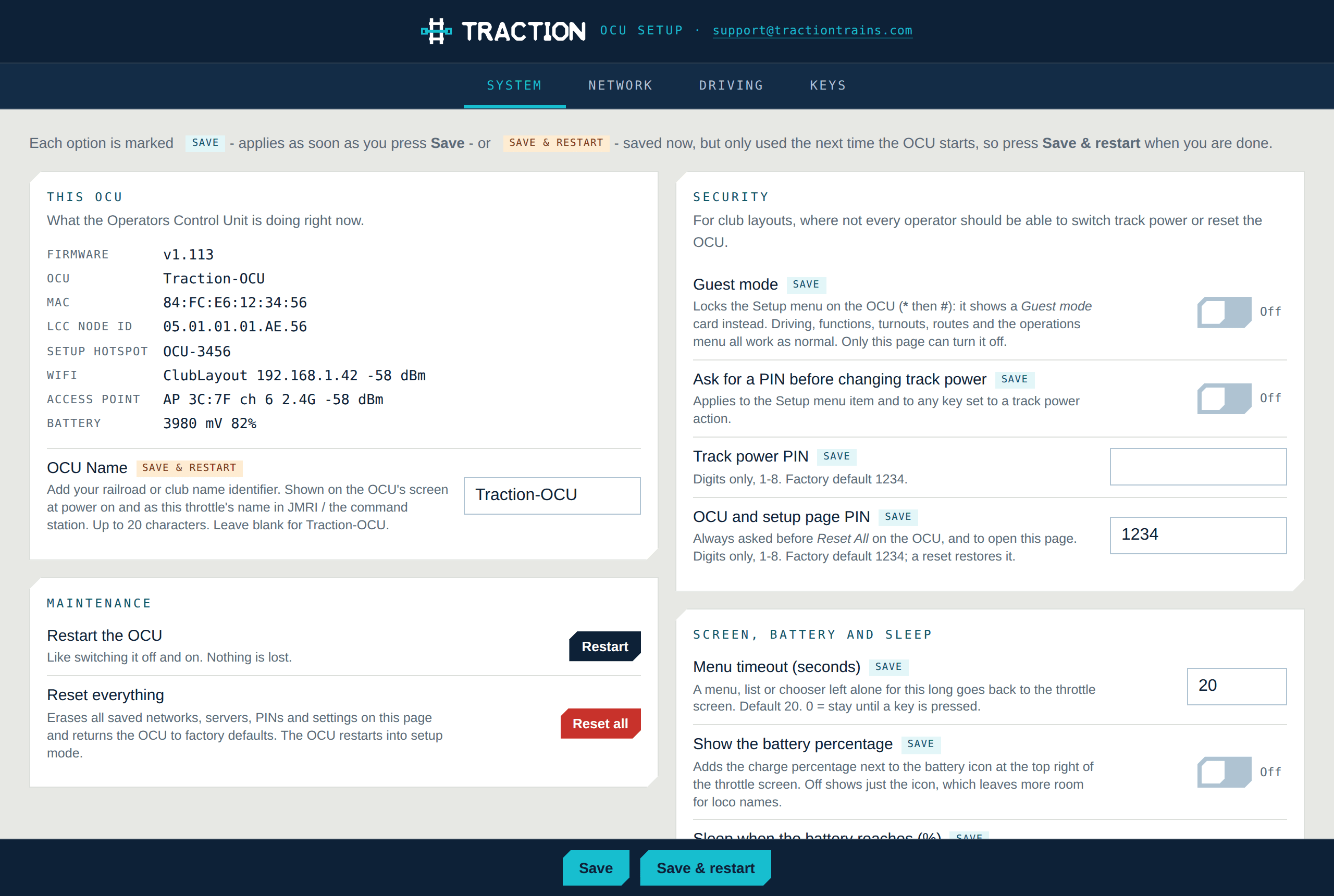
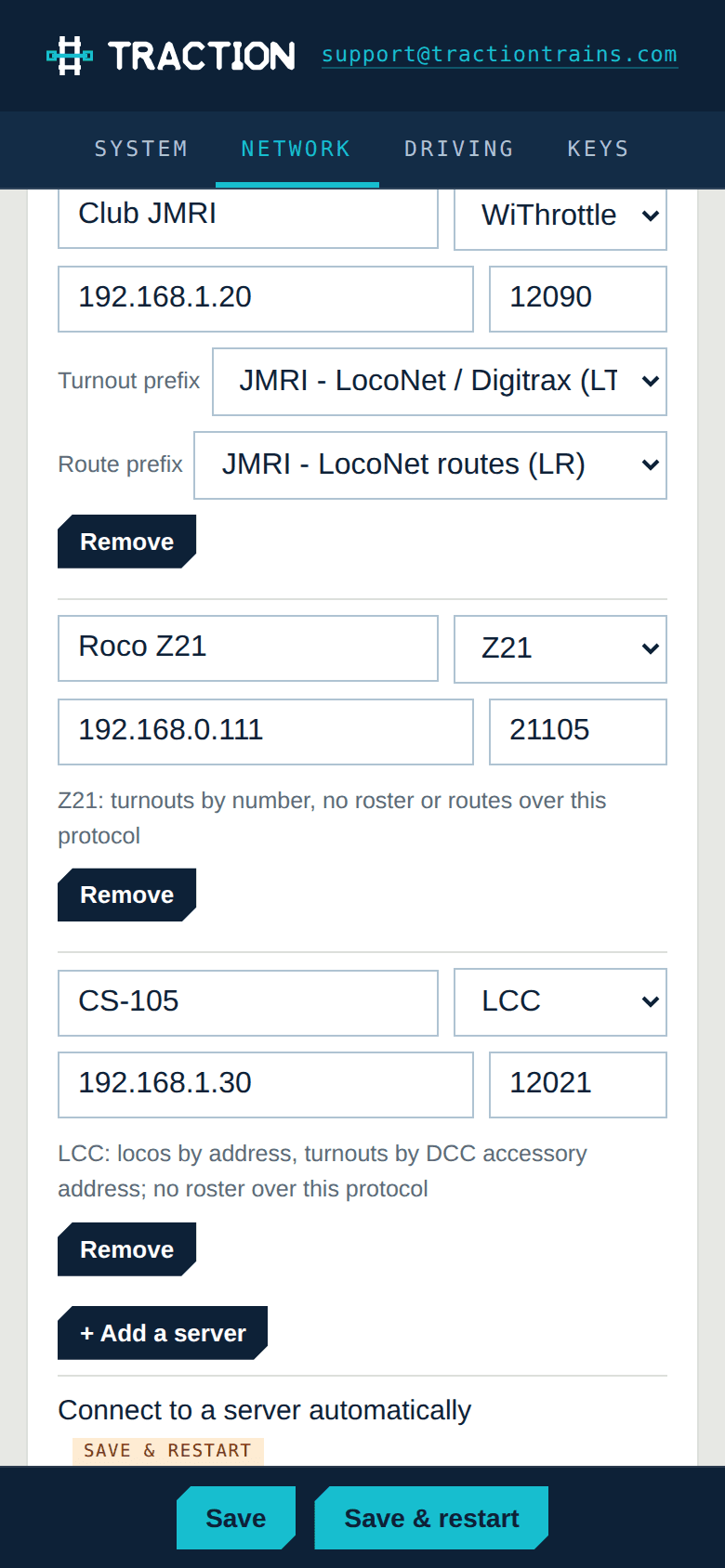
Each option is marked Save — applies as soon as you press Save — or Save & restart — saved now, used the next time the handset starts. Press Save & restart at the bottom when you have changed anything of the second kind.
System. The handset's name (shown on the screen and used in the hotspot name), the setup page PIN and the optional track power PIN, battery percentage on the screen, the knob light's brightness and colours, and the three timers: sleep after so many minutes left on a selection screen, sleep at a battery percentage, and the menu timeout. Guest mode and factory reset are here too.
Network. Saved Wi-Fi networks, with a scan button so you never type a network name; whether to join automatically and to scan for the strongest network first; the setup hotspot fallback; the radio band; roaming (see below); the Wi-Fi signal bars on the screen; and the throttle servers, each with a name, its protocol (WiThrottle, Z21 or LCC — choosing one fills in the usual port), address and port, and for WiThrottle its turnout and route prefixes, plus the server reconnect grace. The status block at the top shows the handset's LCC node ID.
Driving. Number of throttles; one loco per throttle or consists; roster names on the screen; the text between locos in a consist; the fast clock and 12/24 hour; the heartbeat check; and the knob — direction of rotation, steps per click, the ×2 multiplier, fast-turn acceleration, and what a push does.
Keys. What each of the ten keys does, what # shows, a name for every function (shown in the list instead of F-numbers when the roster has none) with a Server / Latch / Moment choice for each, and the eleven custom commands.
Wi-Fi roaming
A club layout usually has several access points, and a handset that clings to the first one it found is useless at the far end of the room. The OCU-1 does what a phone does, and a bit more:
- At connect time it scans and joins the strongest access point that carries your network, preferring 2.4 GHz for its reach.
- While you drive it watches the signal. When it has been weak for a few seconds it scans for a better access point on the same network and, if one is clearly better, hops to it. The screen shows Switching AP for a moment; the server session usually survives and your locos stay where they were.
- If the link does drop it waits a few seconds for it to come back before doing anything drastic, then reconnects, quietly retries the server for ten seconds, and re-acquires the locos.
The three bars beside the battery tell you how it is going, and the Info screen (Setup → 9) shows which access point it is on, the channel and the signal in dBm — useful when you are placing access points. The threshold for hopping, the margin the new access point must win by, and the 2.4 GHz preference are all on the setup page under Network → Radio; roaming can be turned off entirely if you have a single access point.
Guest mode
Turn on Guest mode on the setup page (System) when you hand the handset to a visitor. Everything needed to drive still works — locos, functions, turnouts, routes, the fast clock — but * # shows a Guest mode card instead of the Setup menu, so nobody can forget your Wi-Fi, change the server, alter the number of throttles or reset the handset. It can only be turned off from the setup page, which has its own PIN.
Messages
Every confirmation and error is a full-screen card: a title, a short hint, and a tick or an exclamation mark. Cards stay for three seconds and then return you to where you were. Messages from the server — a turnout it does not know, or a broadcast from JMRI to every throttle — appear the same way, word-wrapped.
| Card | Meaning |
|---|---|
| Saved · Server saved | A server you typed in has been added to the saved list. |
| No Loco · Select a loco first | You asked for functions or a drop with nothing on this throttle. |
| Switching AP · Stronger signal found | Roaming to a better access point. Nothing to do. |
| Server lost · Reconnecting.. | The server has been gone for longer than the grace period; the handset is searching again. |
| Guest mode · Setup is locked | The Setup menu is disabled. Change it on the setup page. |
| No such loco · Not on throttle | You tried to drop a loco that is not on this throttle. |
| Wrong PIN · Try again | The track power or reset PIN was wrong. |
| Sent · name | A custom command went to the server. |
| No command · Slot is empty | That custom command slot has nothing in it yet. |
| Deleted | A saved network or server was removed. |
| Not available · Z21: not on this protocol | You asked for a roster, list or command the current protocol does not have. |
| Loco 3 not found | LCC: nothing on the layout answered for that address — usually no LCC command station on the hub. |
| Loco 3 in use by another throttle | LCC: another throttle holds that train. |
| Turnout IT27 not found | A message from the server, shown as it was sent. Usually the prefix. |
Battery and sleep
The handset sleeps by itself in three cases, all adjustable on the setup page: after a set time left waiting on a selection screen with nothing chosen (five minutes), when the battery falls to a set percentage (3 %), and from the menu (Setup → 6: Disconnect → 3: Power OFF). Any key wakes it. Track power and the server are left as they were.
Charge over USB-C from any 5 V supply. The handset runs while charging.
Updating the firmware
Firmware is written to the handset over USB-C with the standard ESP32 tools; the current build, the keypad firmware and instructions are on the Downloads page, and every change is in the release notes. Settings, saved networks and servers survive an update. Reset All (Setup → 0, PIN and a confirmation) returns everything to factory defaults.
When something is off
It cannot find a server. Some access points block multicast between wireless clients, which is what mDNS discovery needs. Add the server's address under Network → Throttle servers on the setup page (with the right protocol) and it is tried first, no discovery required. On DCC-EX, joining the command station's own access point is the surest route. A Z21 must be on the same subnet as the handset for the search to reach it; if it is not found, save it by address — the factory address is 192.168.0.111 on the Z21's own router.
On LCC every loco says “not found”. The handset asks the layout for a train node and nothing answered. JMRI on its own does not provide train nodes — its LCC support drives trains, it does not serve them — so an LCC hub needs an LCC command station such as a TCS CS-105 on it. If your command station is on JMRI by another connection, use JMRI's WiThrottle server instead.
It connects, then the train stops after a few seconds. That is the server's emergency-stop timeout doing its job because the heartbeat did not get through. Look at the signal bars; if the link is marginal, place an access point closer or let roaming find a better one. Turning the heartbeat check off (Setup → 4) is for servers that do not support it, not for weak signal.
Function labels are missing. Labels come from the roster entry on a WiThrottle server. A loco selected by address that is not in the roster has none, and Z21 and LCC have no roster at all; give the functions names on the setup page instead and they are used for every loco.
A Z21 loco's functions latch when they should be momentary. A Z21 does not tell a throttle how a function behaves, so in Server mode every press toggles it. Set Moment for that function on the setup page (Keys → Function names).
A turnout comes back “not found”. The prefix does not match your system. Set it per server, or in JMRI defaults, on the setup page.
The setup page will not open. You need the PIN (factory 1234). If you have lost it, Reset All on the handset returns it to 1234 along with everything else. If the handset cannot join any network at all, it opens its own hotspot after a failed connection so you can fix the details from a phone.
The knob goes the wrong way. Driving → Speed knob → Clockwise is faster on the setup page.
Still stuck? Write to support@tractiontrains.com with the firmware version and MAC address from the Info screen (Setup → 9) and a line about what the layout runs.